Dashboard guide by role
For training the practice: what each person does every month, step by step, with the screens they will see.
The pictures come from the sample practice Soetdoring & Partners. BrightForge Manufacturing and Messy Sample Trading are made-up sample clients; Demo Company (Global) is Xero's own demonstration company. No real client appears.
Everyone: signing in and Today
- Sign in with your email and password. Partners also use a passkey (Touch ID, a phone or a security key) every time, and set it up the first time they sign in. For other roles a passkey is optional: add one under Settings, Your sign-in, and from then on Catalyst Platform asks for it every time you sign in.
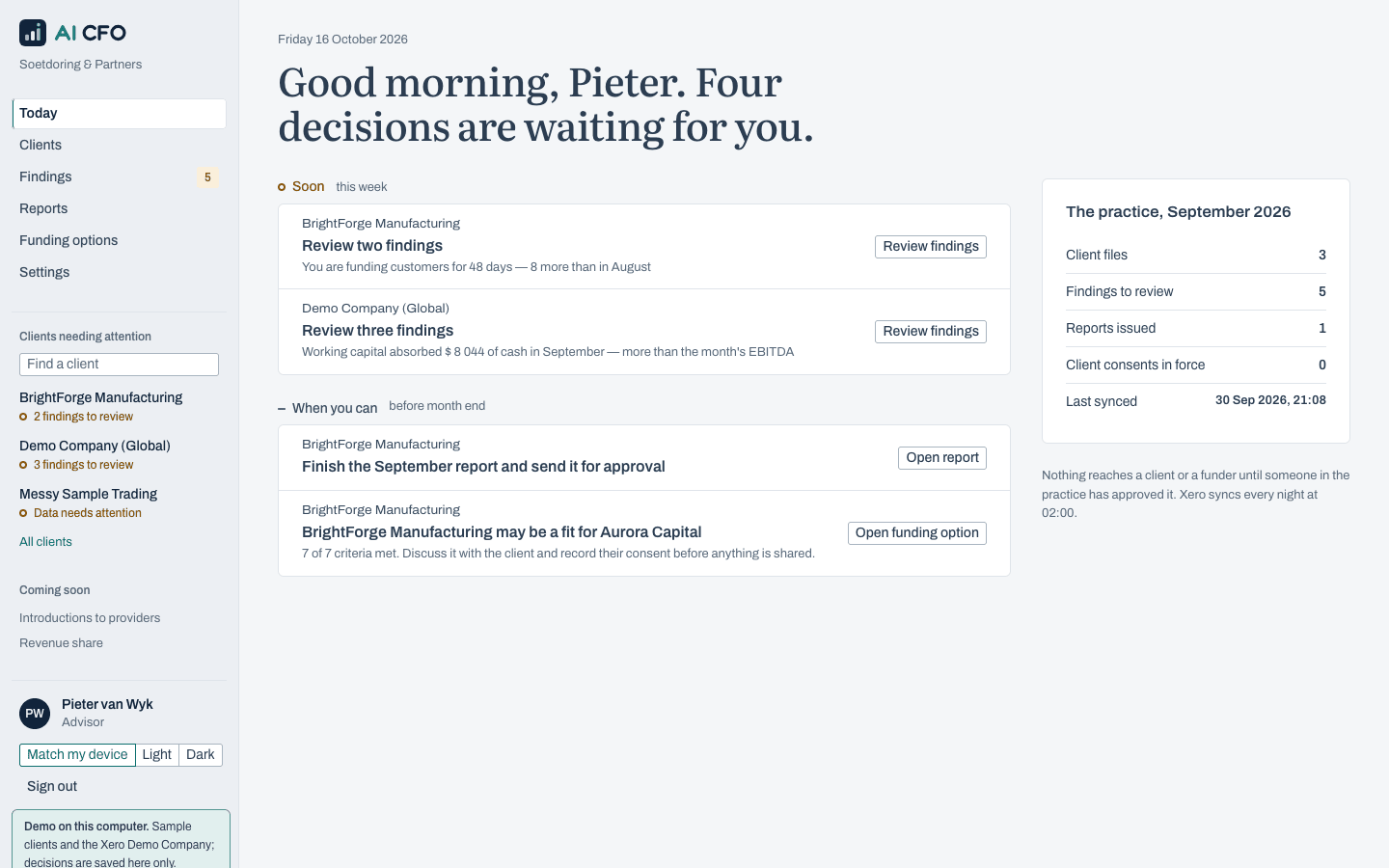
- Start on Today. It lists the decisions waiting for you, by urgency: Soon (this week) and When you can (before month end). Each row names the client, says what is needed and has one button that takes you there.
- Use the rail on the left for the screens your role uses and for every client file. Clients that need attention are listed first, with a short status under each name. Find a client searches them. Drag the rail's edge to make it wider or narrower, or hide it; the dashboard remembers this on your computer. Coming soon lists screens that aren't built yet.
- Choose light or dark at the foot of the rail (Match my device follows your computer), and Sign out when you finish.
Advisor: findings, the report and service provider matches
The advisor does most of the month's work: reviewing what Catalyst Platform found, preparing the report and taking the client through any service provider match.
1. Read the client's position
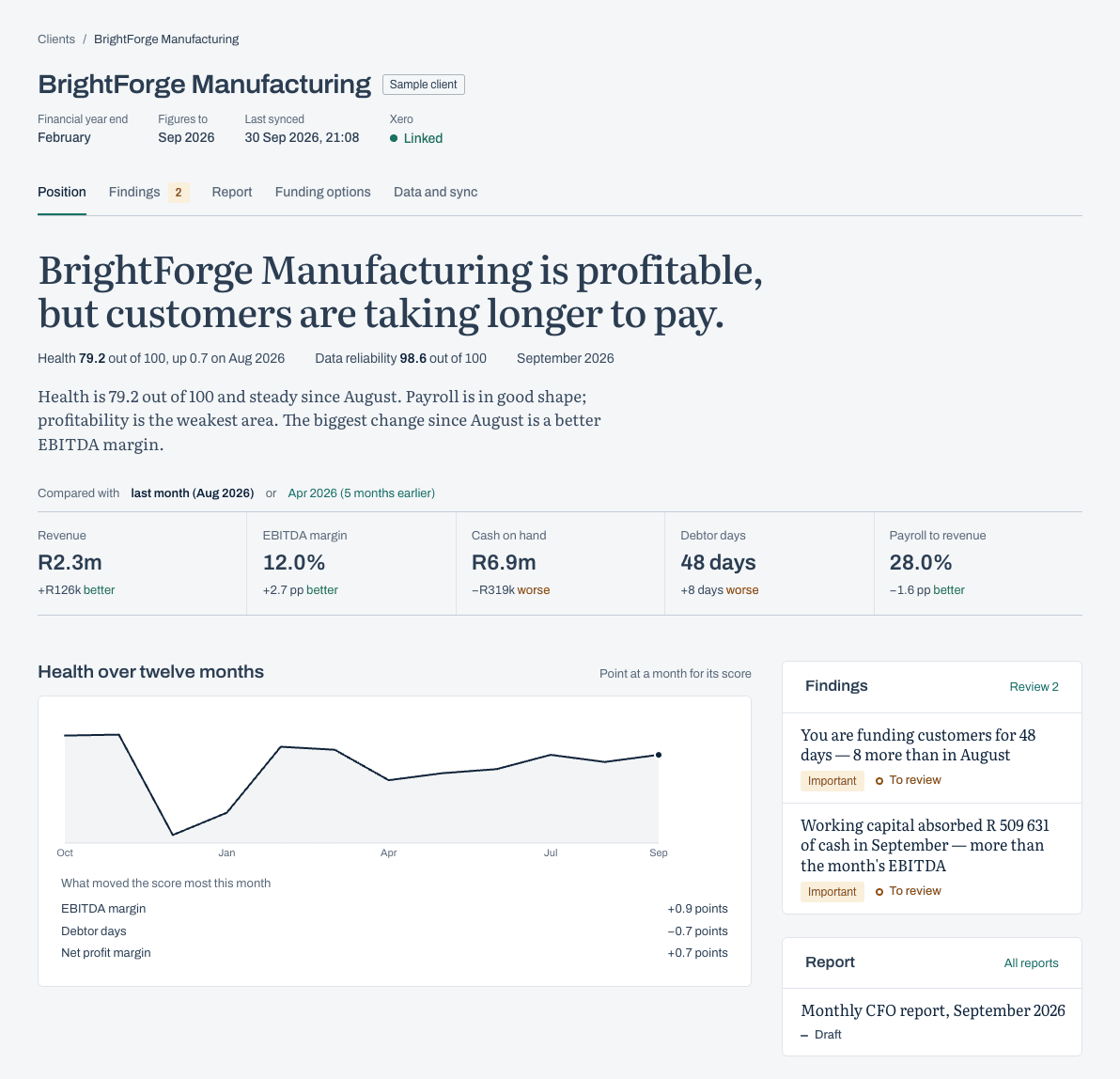
- Open the client from Today or the rail. The Position tab opens first.
- Choose the months at the top: To is the month the position, figures and findings are for, and From trims the trends. It starts at the newest month in Xero. When that month isn't complete yet (October revenue still nil, say), choose September. A month Catalyst Platform hasn't worked out yet has a Work out button for partners, advisors and practice managers. It takes a few seconds and proposes that month's findings for review too. The choice stays in the page's address, so a link shares it.
- Read the position sentence, the health score and what moved it, and the five headline figures. Switch the comparison between last month and an earlier month.
- Scroll to All figures for every figure with six months of trend. Point at any chart line, or tab to it and use the arrow keys, to read each month's value. The health chart runs from 0 to 100 and marks the bands: Strong from 80, Healthy from 65, Stable with focus areas from 50, Under pressure from 35. Every number is calculated from the client's books; none comes from AI.
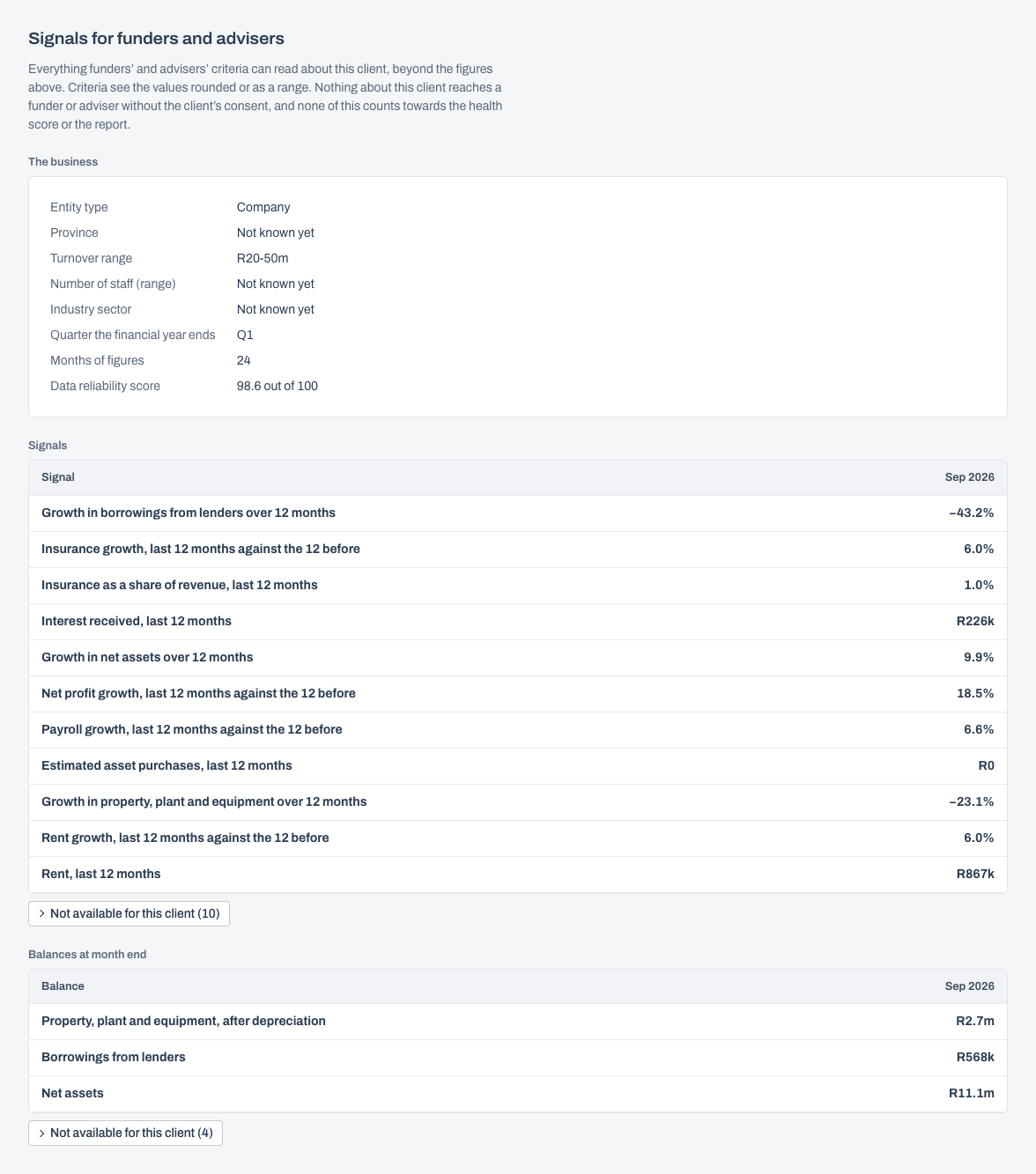
- Further down, Signals for service providers shows what service providers' criteria can read about the client: business details, signals such as rent or borrowing growth over 12 months, and month-end balances. They are never scored, and they don't count towards the health score or the report. Nothing reaches a service provider without the client's consent.
2. Review each finding
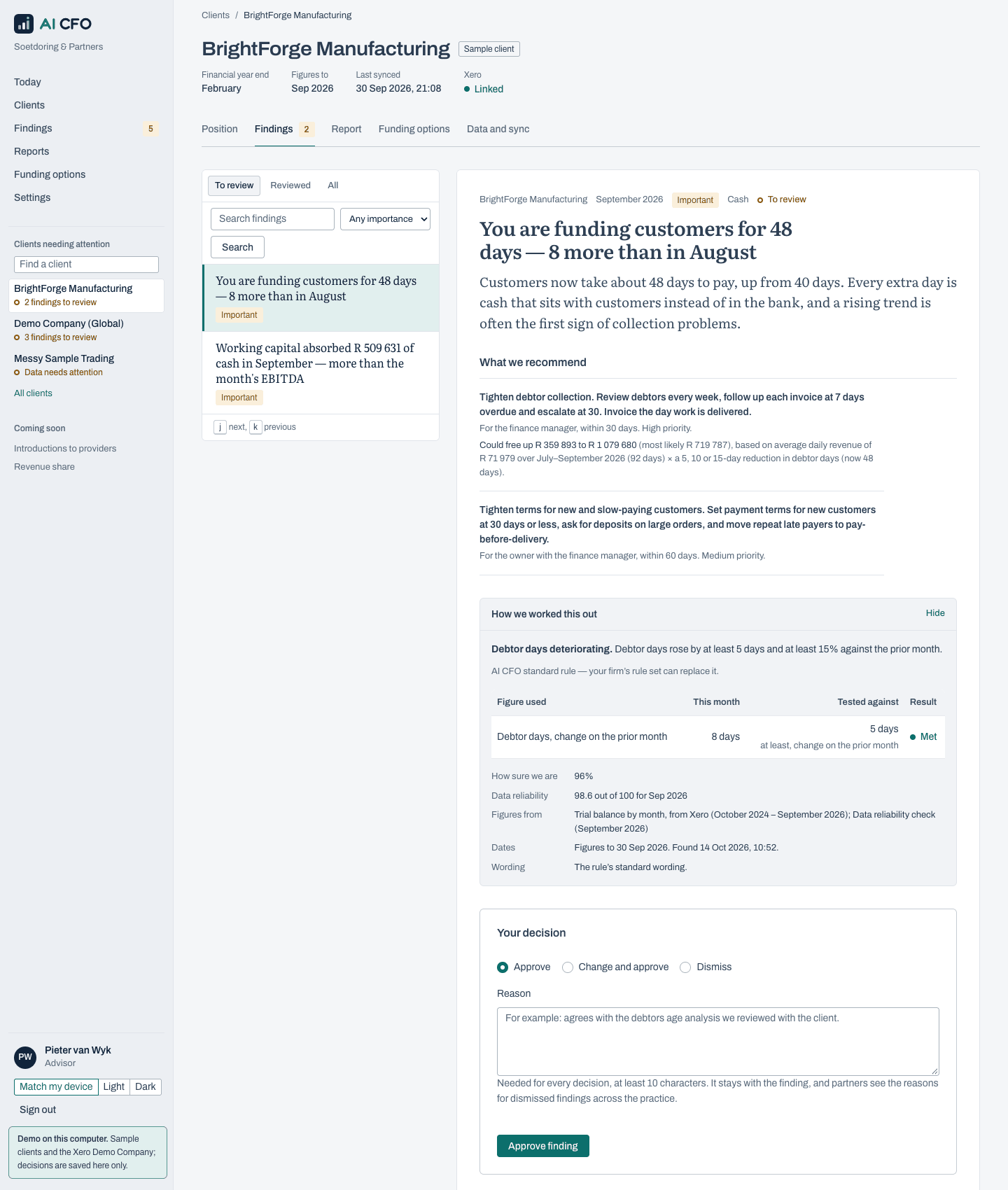
- Open the Findings tab (or Findings in the rail for every client). Both show the same table: the finding, the client, how important it is, its status, the month and when it was found, with filters, a search and pages. Choose a finding to open its own page; Previous and Next move through the list, and Back to findings keeps your filters.
- Read what was found and What we recommend: each action with its owner, timing, priority and, where it can be worked out, the estimated effect from the client's own figures.
- Open How we worked this out to see the check in words, the figure tested against its threshold, how sure Catalyst Platform is, the data reliability and where the figures came from.
- Under Your decision, choose Approve, Change and approve or Dismiss, write a reason (at least 10 characters) and confirm. The next finding still to review opens, or the list when none is left. The reason stays with the finding; partners see the reasons for dismissed findings across the practice.
- Findings on tax, compliance or going concern need a partner's decision.
3. Prepare the report and send it for approval
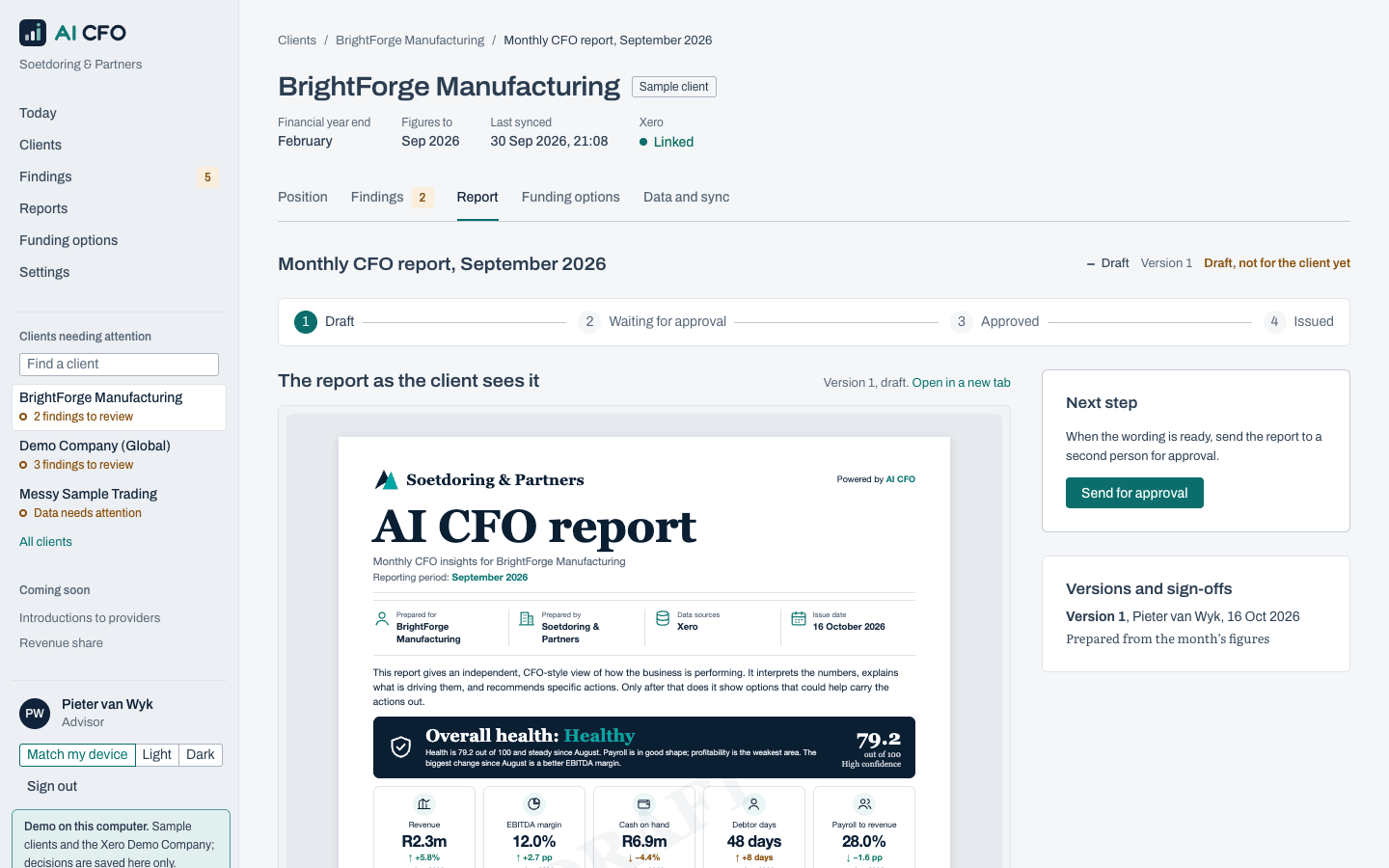
- Open the Report tab. If there is no draft for the month yet, choose Prepare the … draft (the button names the month): it is built from the month's figures and the reviewed findings.
- Read The report as the client sees it, or Open in a new tab for full size. The steps above it show the stage: Draft, Waiting for approval, Approved, Issued.
- To change the words, edit the page under Wording, say what you changed and save. Each save is a new version; the figures can't be edited.
- Send for approval. A second person approves it or asks for changes. Pages on tax, compliance or going concern need a partner.
- Once approved, Issue it. The version is locked and kept as a PDF. Download the PDF and send it to the client yourself; Catalyst Platform doesn't send anything to the client. A correction is a new report, with the reason.
4. Take the client through a service provider match (only when one fits)
- When a service provider's criteria may fit, Today and the client's Service providers tab say so, with each criterion in a short sentence. Service provider matches never change the findings or recommendations.
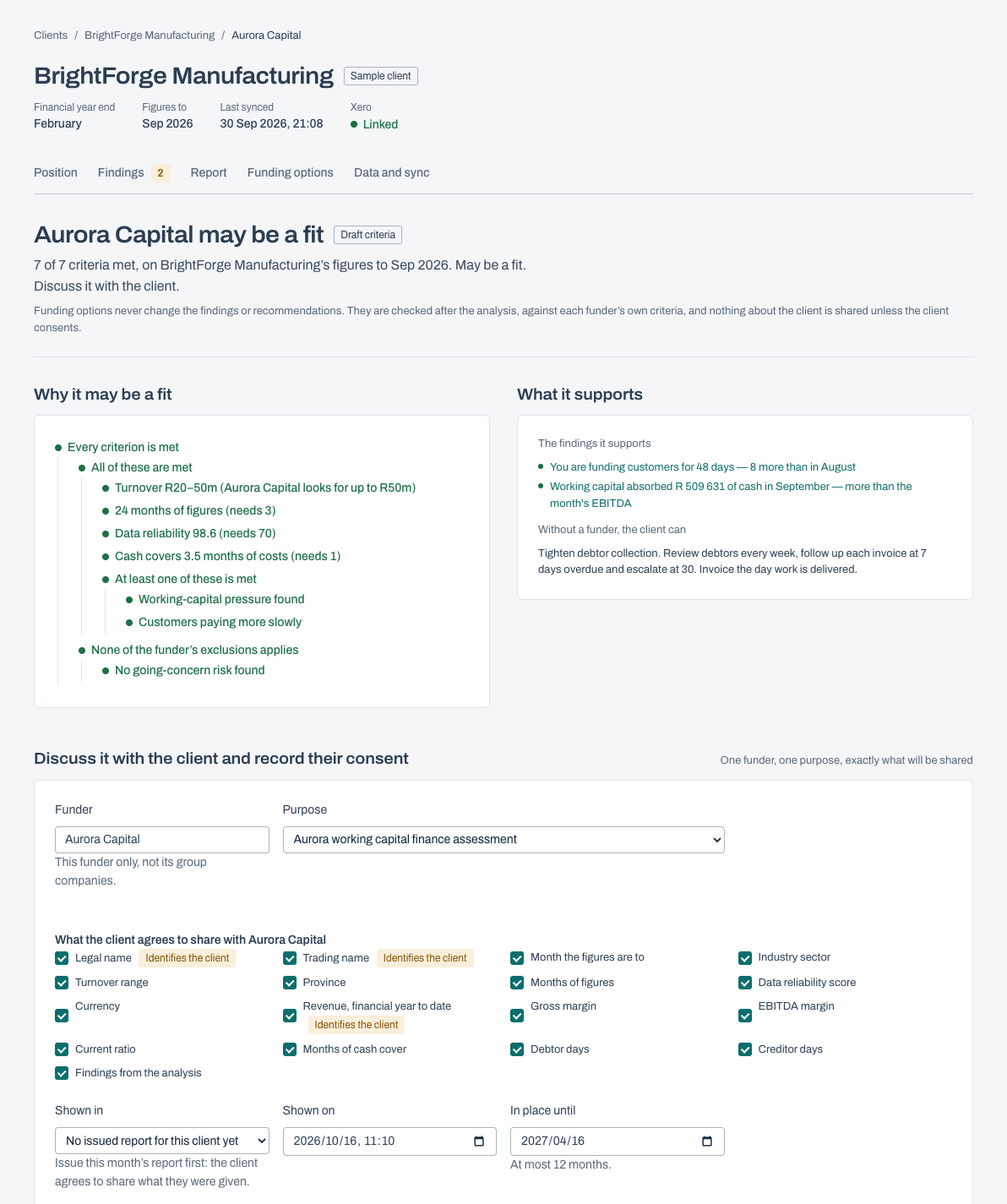
- Consent can only be recorded once the client has an issued report, because the client agrees to share what they were shown. Where the service provider has set up its own opportunities, the service provider match also shows which of them match the client.
- Discuss it with the client. If they agree, open the service provider match and fill in Discuss it with the client and record their consent: the purpose, exactly what the client agrees to share (details that identify the client are marked), the report version they were shown, when, who gave consent, their role and how, and how long it lasts (at most 12 months).
- Show the client the wording on screen, tick the confirmation and Record client consent. It is recorded in your name, with the exact wording.
- Catalyst staff then prepare, review and send only what the client agreed to, and record the service provider's offer. On the Service providers screen, record that you presented the offer, then the client's decision with a reason, and the outcome.
- If the client withdraws consent, record it on the service provider match. Nothing more is shared; anything already shared can't be recalled, and the service provider is told to stop using it.
Partner: approvals, the team and the practice's settings
A partner can do everything an advisor does. These steps are the partner's own.
- Decide sensitive findings. Findings on tax, compliance or going concern wait for a partner.
- Approve reports. Approve a report sent for approval, or ask for changes. Pages on tax, compliance or going concern need a partner's approval.
- Read Notices. Each time Catalyst staff had access to the practice, and each change to a check that alters some of your clients' results, appears here to mark as read.
- Watch access by Catalyst staff under Settings. Staff can open the practice only for a reason, for at most 4 hours, as Read only or Practice manager. It needs no approval, but every partner sees a notice straight away, everything staff do is recorded, and any partner can end it early.
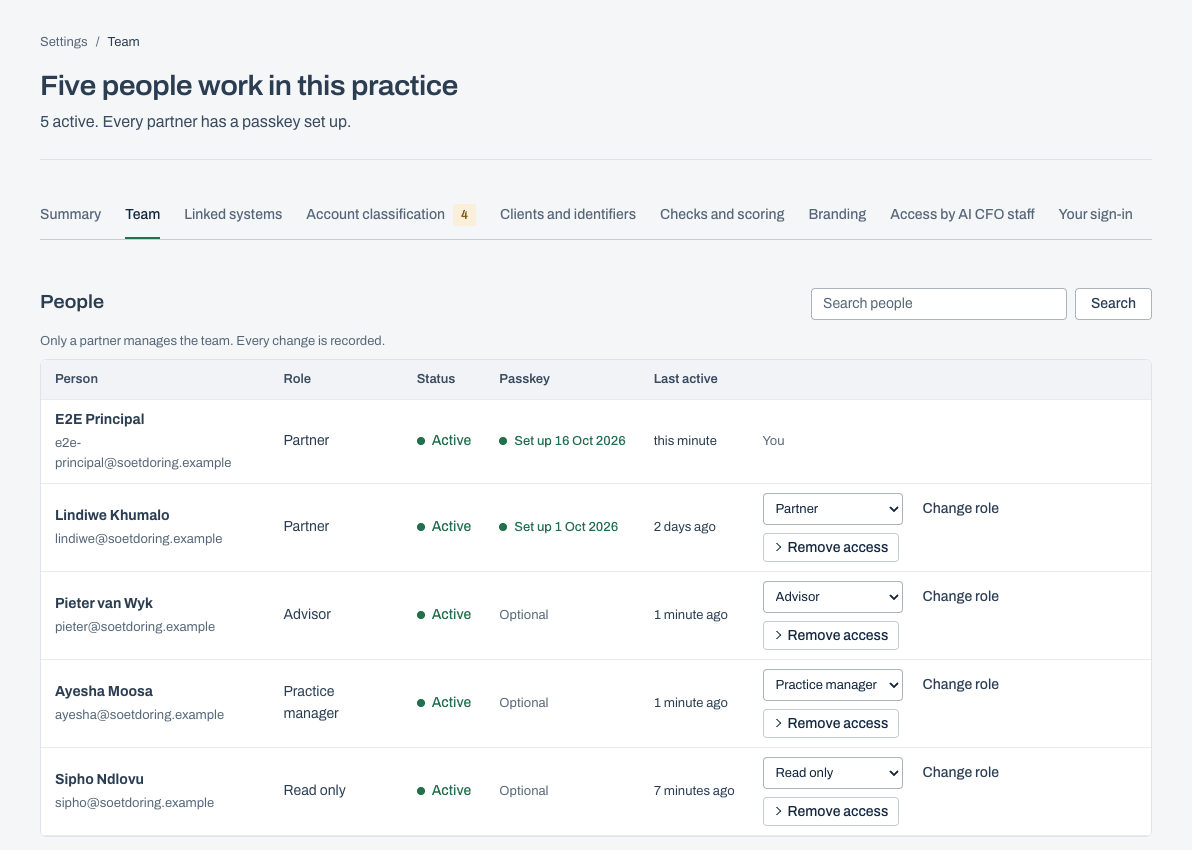
- Manage the team under Settings, Team: invite someone (Catalyst Platform emails them a single-use link, which is also shown so you can send it yourself; it works until the expiry date shown with it), change a role, or remove access. Past decisions and sign-offs stay on record.
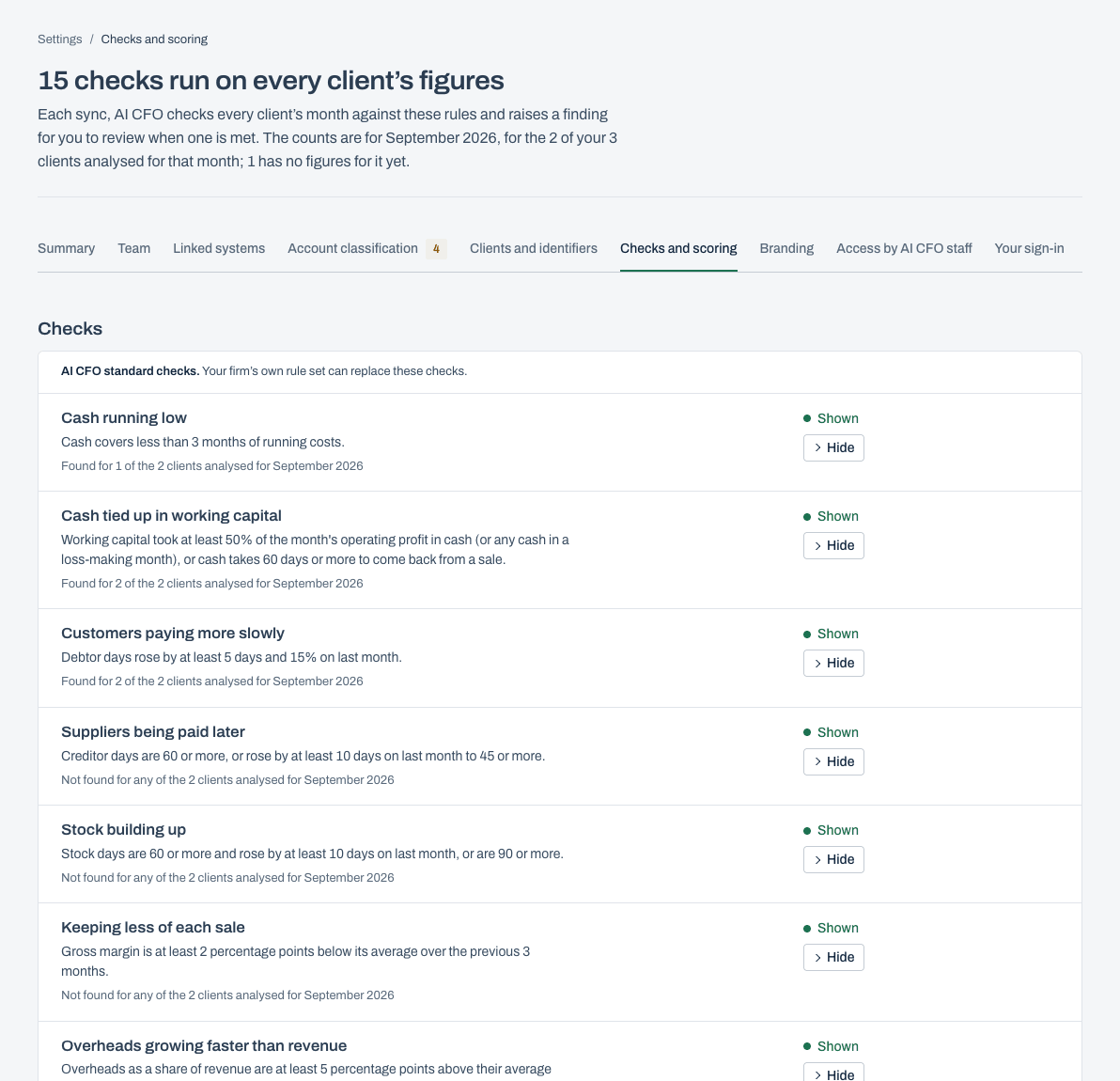
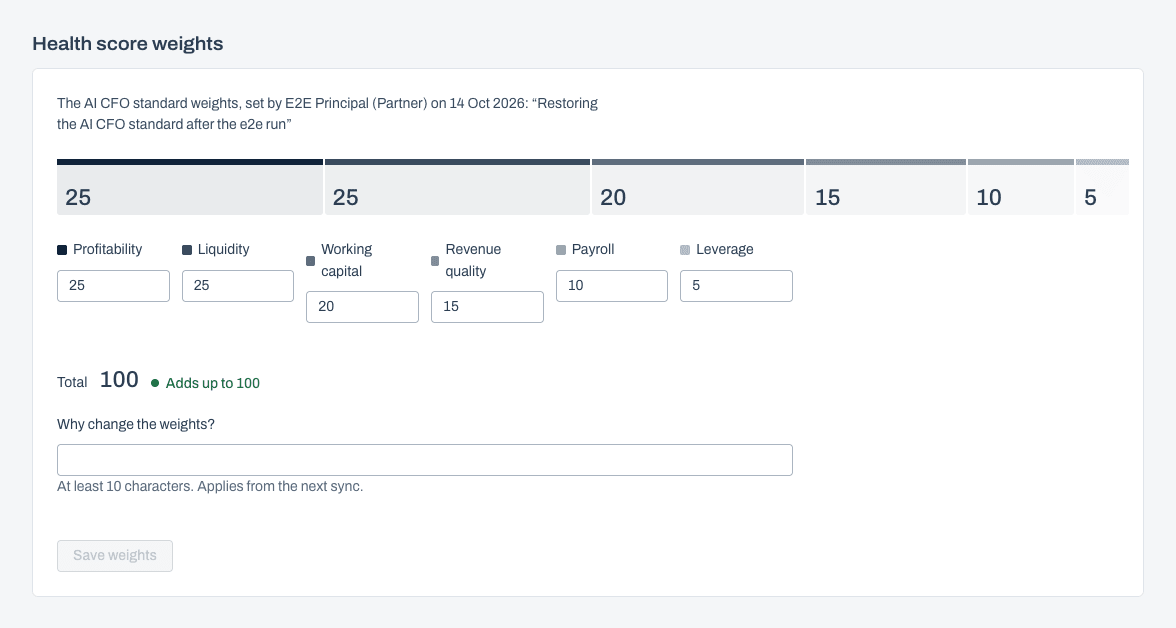
- Set Checks and scoring under Settings: hide a check from the practice's findings, or change the health score weights, each with a reason. Changes apply from the next sync and show in the history.
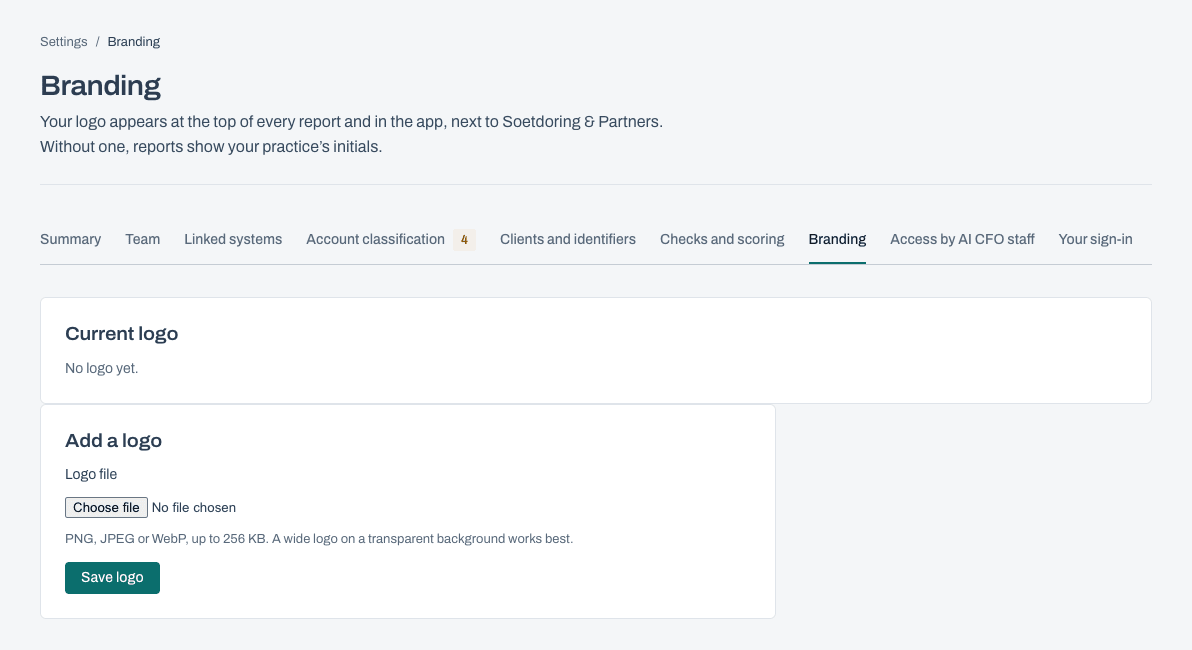
- Add the practice's logo under Settings, Branding: PNG, JPEG or WebP, up to 256 KB (SVG files are not accepted). It appears at the top of every report and in the rail next to the practice's name. Without one, reports show the practice's initials.
Practice manager: links, classification and data
The practice manager keeps the books flowing in and the data clean, so the advisor's figures can be trusted.
- Link a new client's Xero from Clients, Link a client's Xero. Someone at the client signs in to Xero and approves access; each organisation they choose becomes a client file. The Xero user needs the Standard + Reports or Adviser role, or Xero won't share every record. In the current build, linking doesn't start a sync by itself: the nightly sync, or Sync now, reads the latest two months. A button to read a new client's full 24-month history is not built yet.
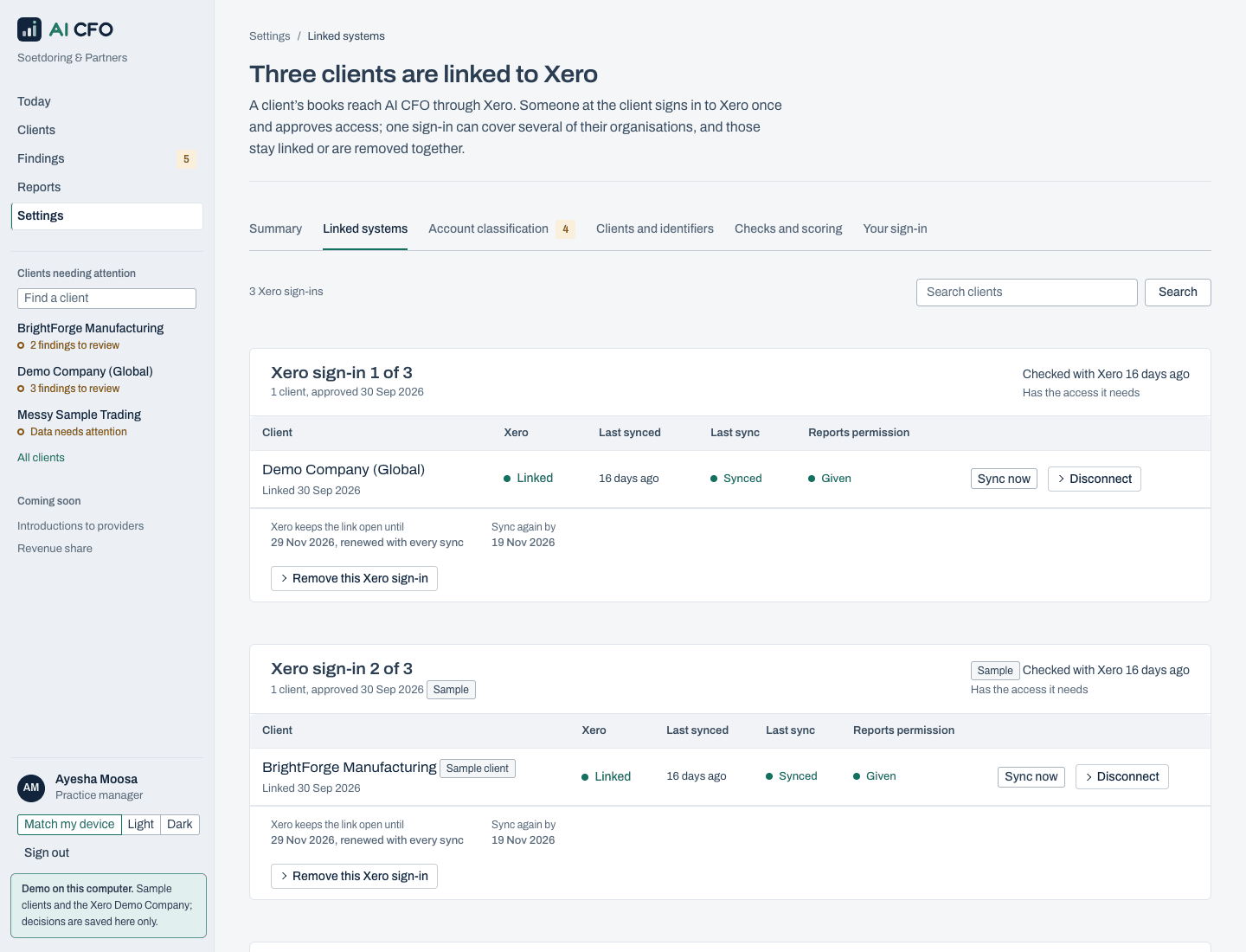
- Check Linked systems under Settings: each Xero sign-in, its clients, whether the reports permission is given, when Xero keeps the link open until and when to sync again by. Sync now, disconnect a client, or remove a Xero sign-in from here.
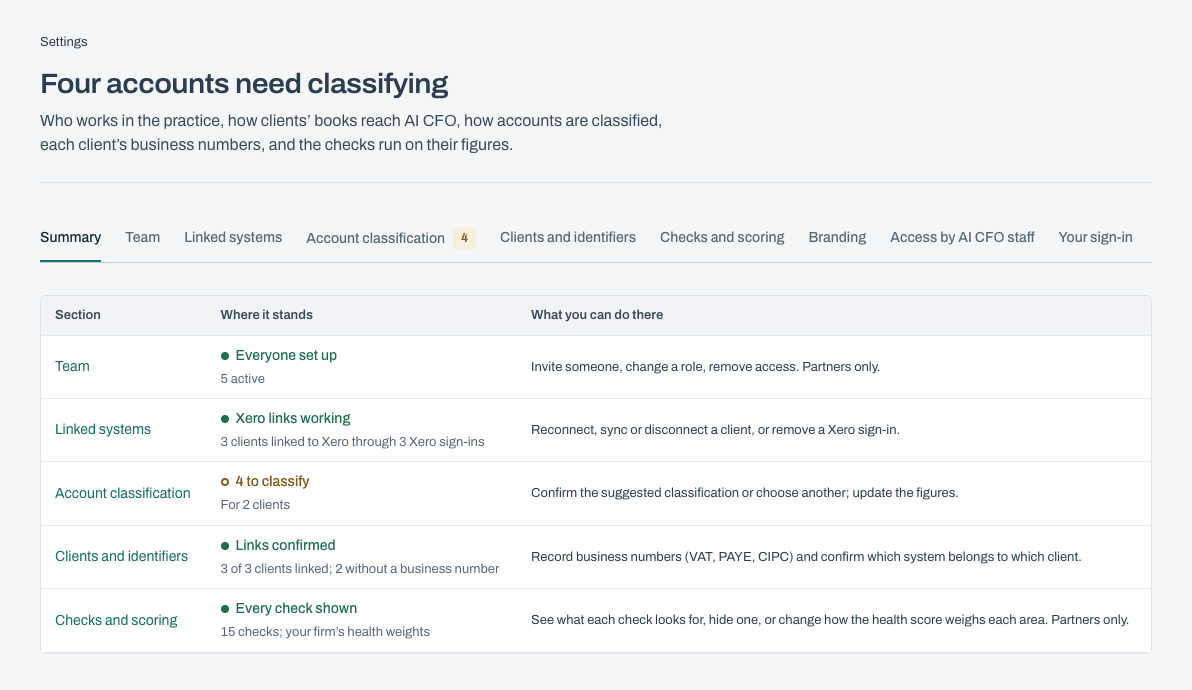
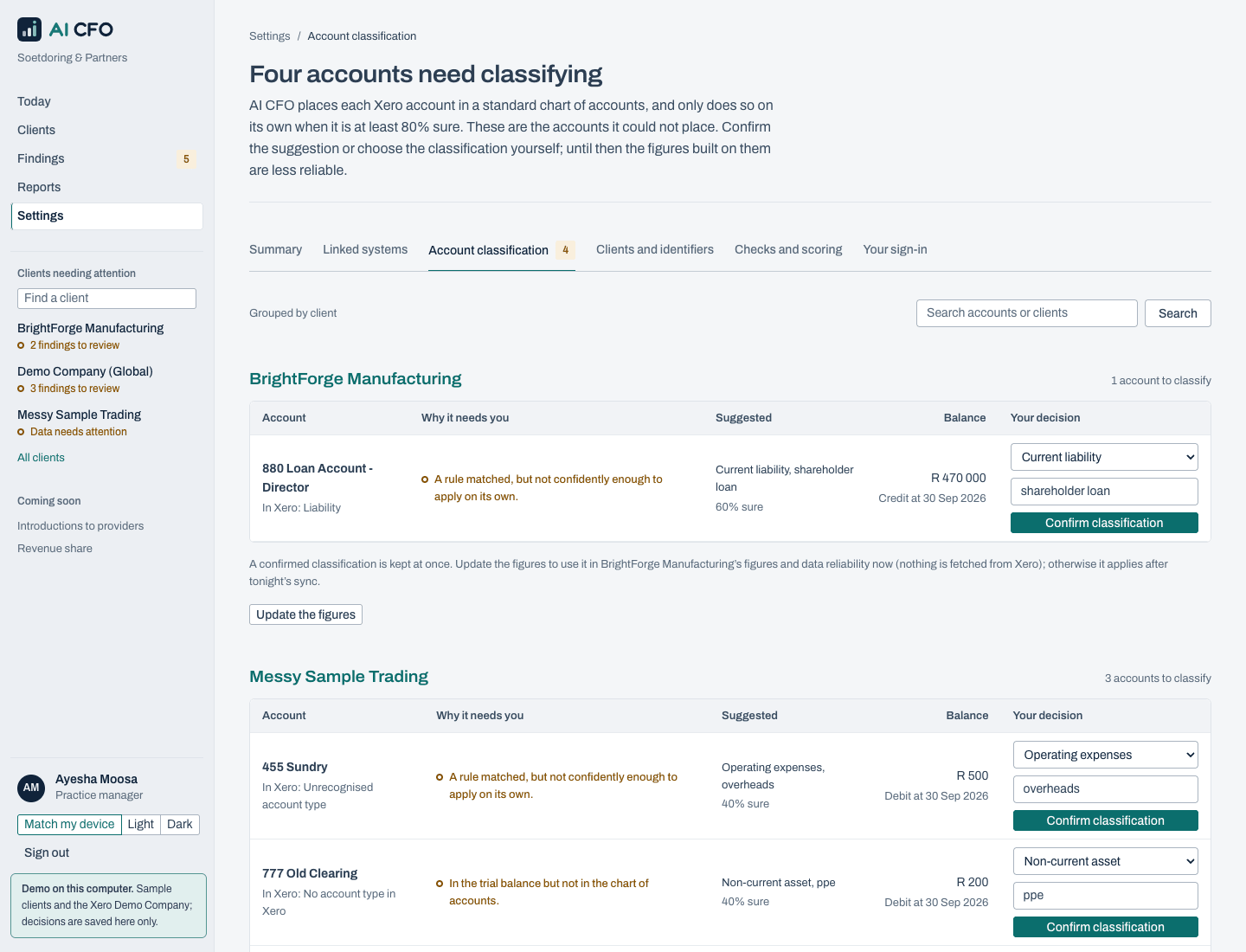
- Classify accounts Catalyst Platform couldn't place on its own (it only does so when at least 80% sure). Confirm the suggestion or choose another, then Update the figures, or leave it to apply after the night's sync. The decision is remembered.
- Record business numbers under Clients and identifiers: company registration, VAT, PAYE and others. They are checked for shape, not verified with CIPC or SARS. Confirm which Xero organisation belongs to which client; matching only suggests.
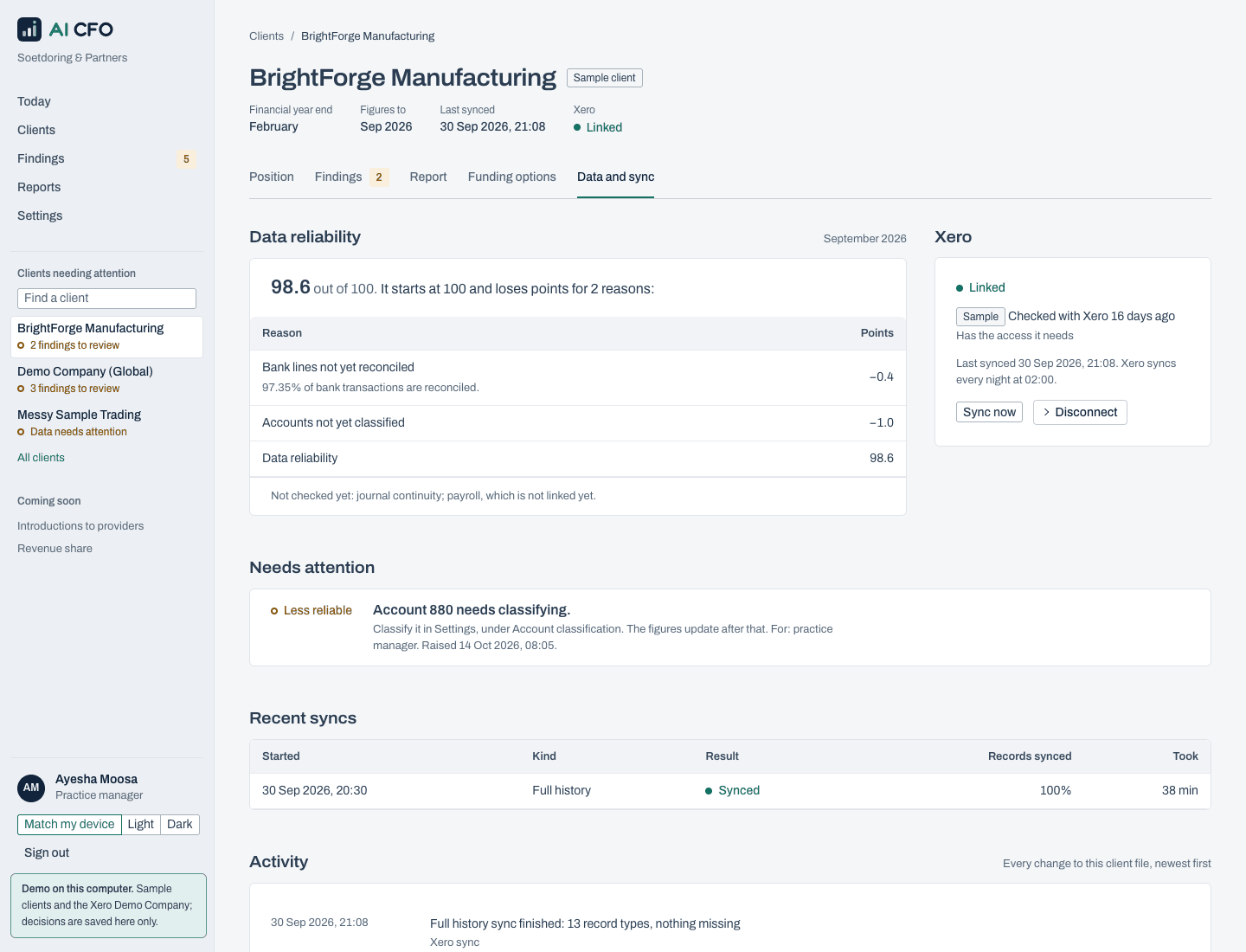
- Watch each client's Data and sync tab: data reliability and the reasons it is below 100, recent syncs, and anything that needs attention.
Read only
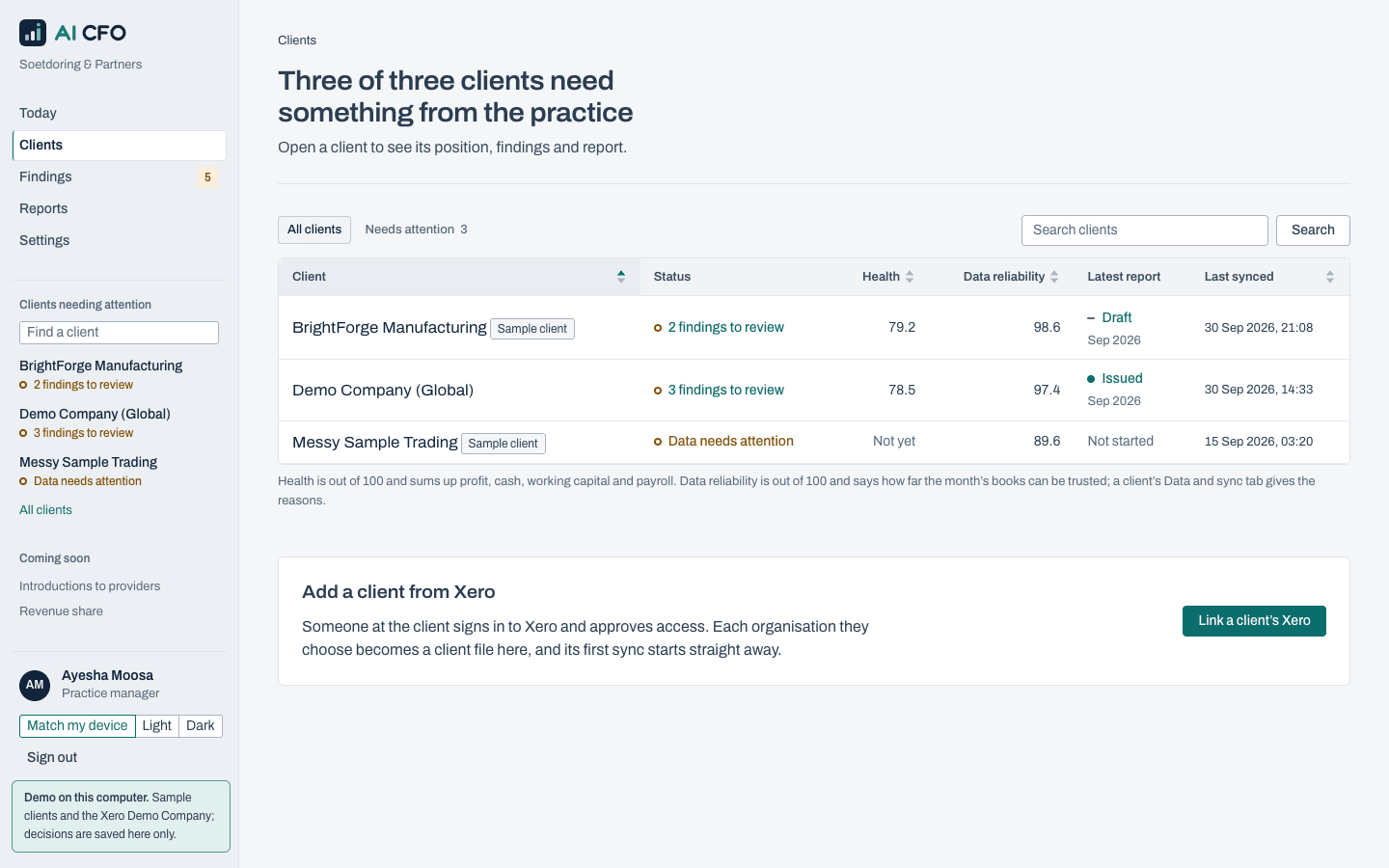
- Sign in and use Today, Clients and Reports to see clients and their issued reports.
- Read only users don't review findings, edit reports or record consent. In Settings they see only Your sign-in, where they can add a passkey of their own.